Troubleshooting: Bluetooth Permissions for iPhone and Android
If your external TytoCare devices (such as the Pulse Oximeter or Blood Pressure Cuff) fail to pair, it is often due to mobile operating system permissions blocking the TytoCare app from accessing Bluetooth, even if Bluetooth is globally turned on.
iPhone (iOS) – Enabling Bluetooth Permissions
Follow these steps to ensure the TytoCare app has specific permission to use Bluetooth on your iPhone:
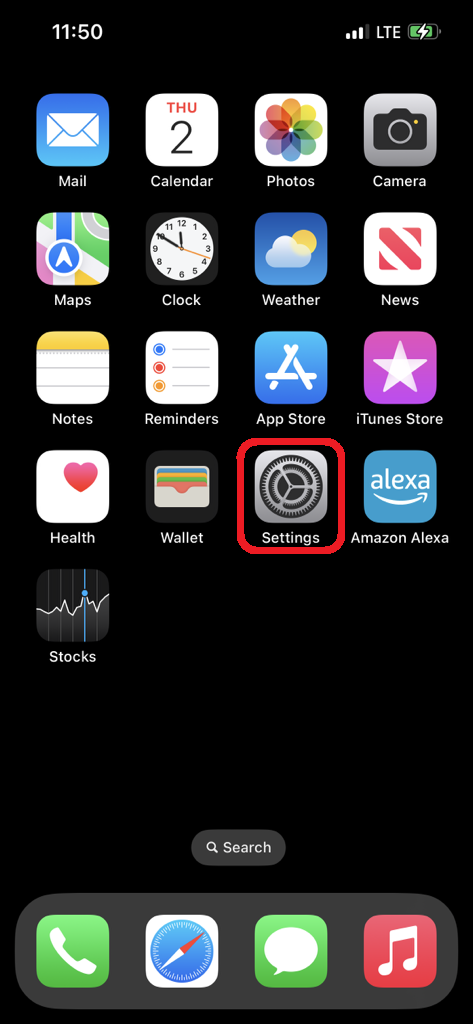
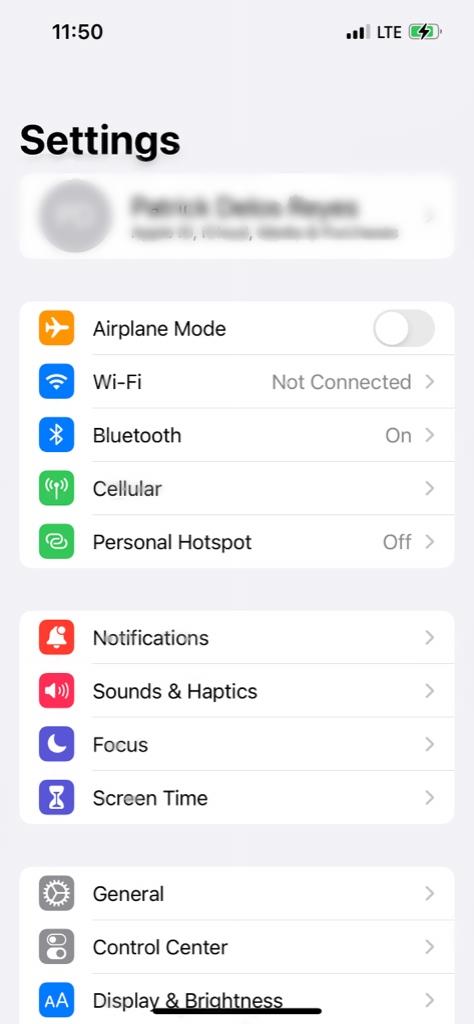
- Open your iPhone Settings.
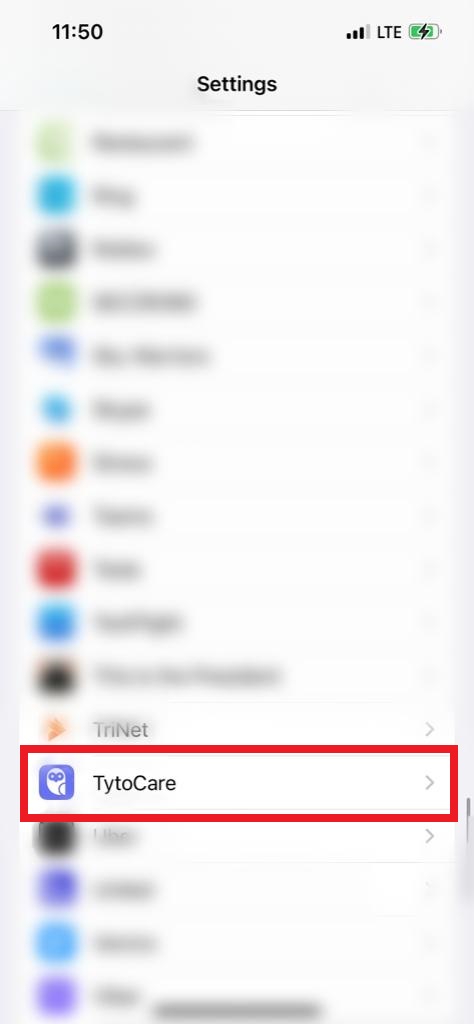
- Scroll down to the list of installed applications or use the search bar at the top to find TytoCare.
- Tap on TytoCare to view its permissions.
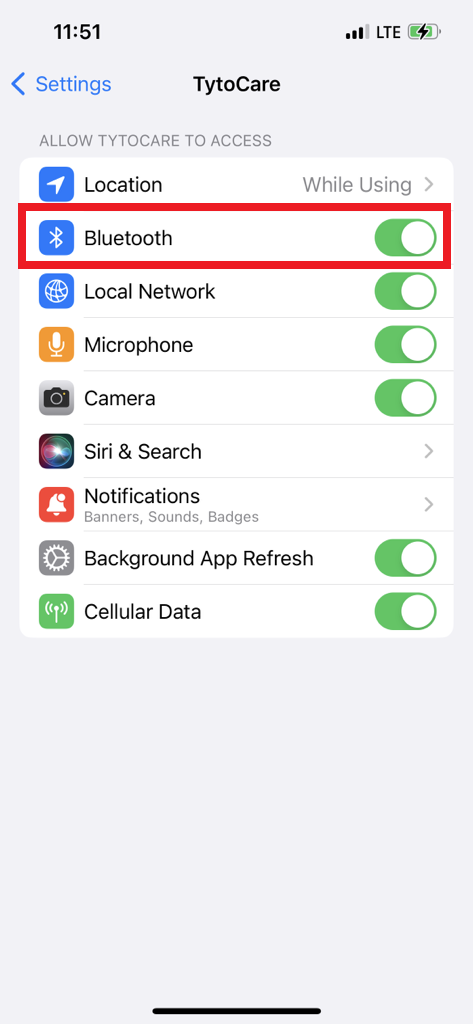
- Ensure the Bluetooth toggle is switched ON. For the best experience, ensure Camera and Microphone permissions are also enabled.
- Re-launch the TytoCare app and attempt to pair your device.
Android – Enabling Bluetooth & App Permissions
Android generally handles Bluetooth automatically, but the “Unused App Settings” feature can revoke permissions if the app hasn’t been opened in several months.
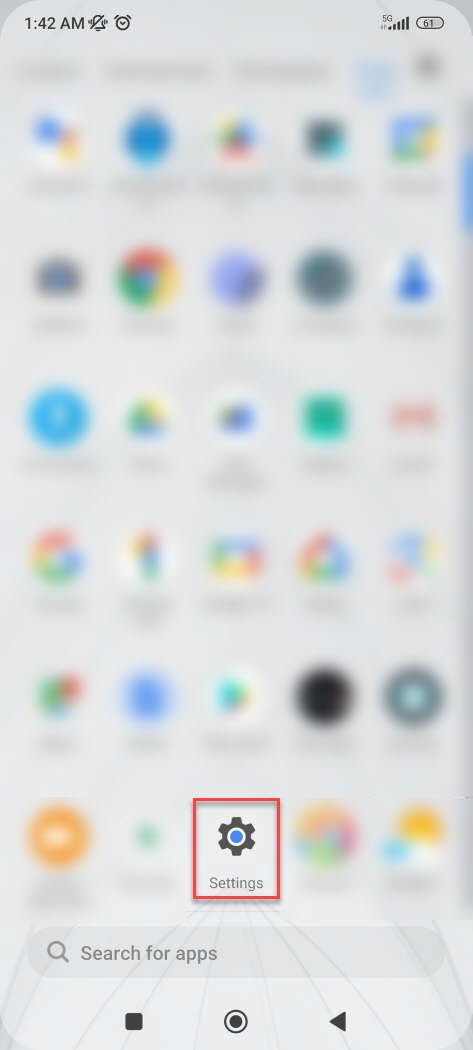
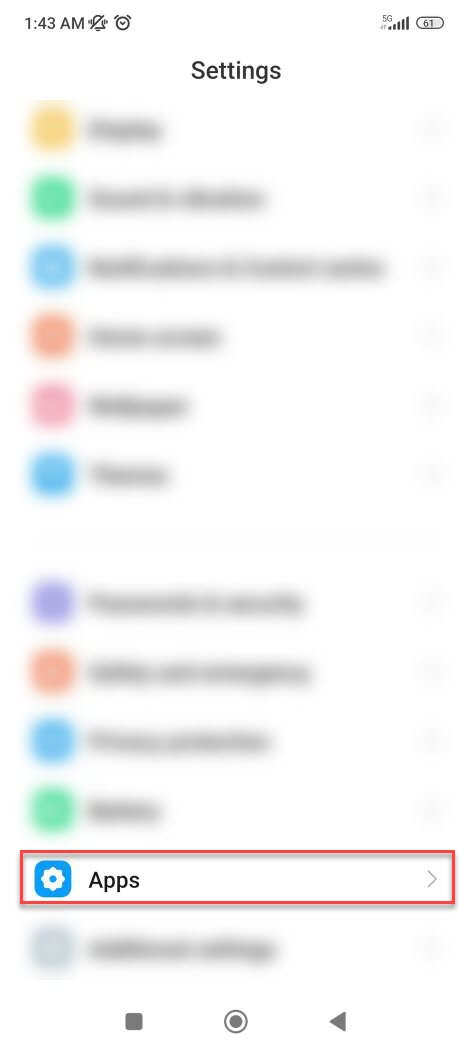
- Open Android Settings and select Apps.
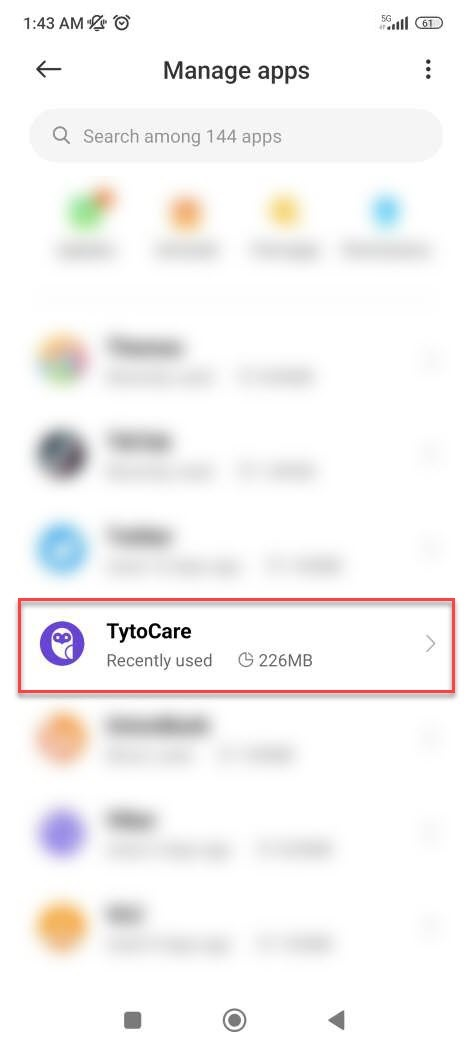
- Find and select the TytoCare app from the list.
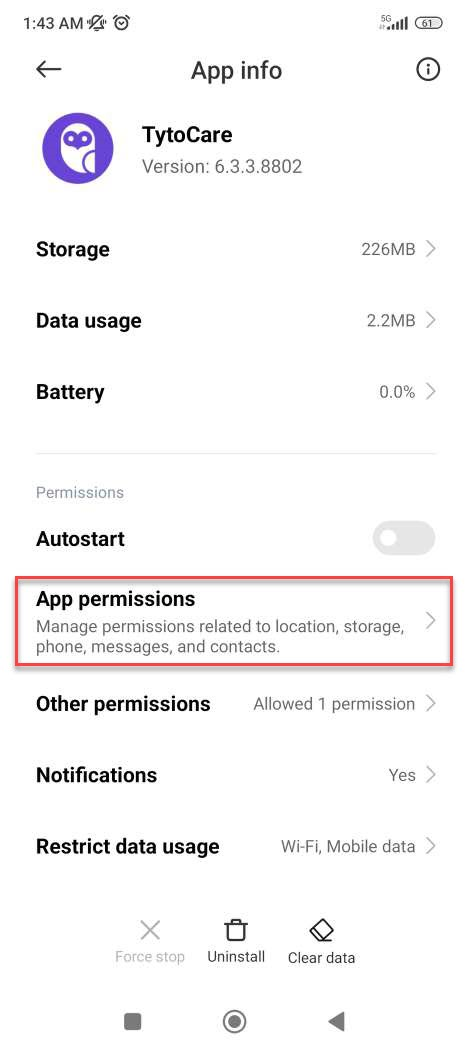
- Tap on App Permissions (or Permissions).
- Ensure all necessary sensors, including Nearby Devices (Bluetooth) and Location, are set to Allowed.
- Re-launch the TytoCare app and attempt pairing.
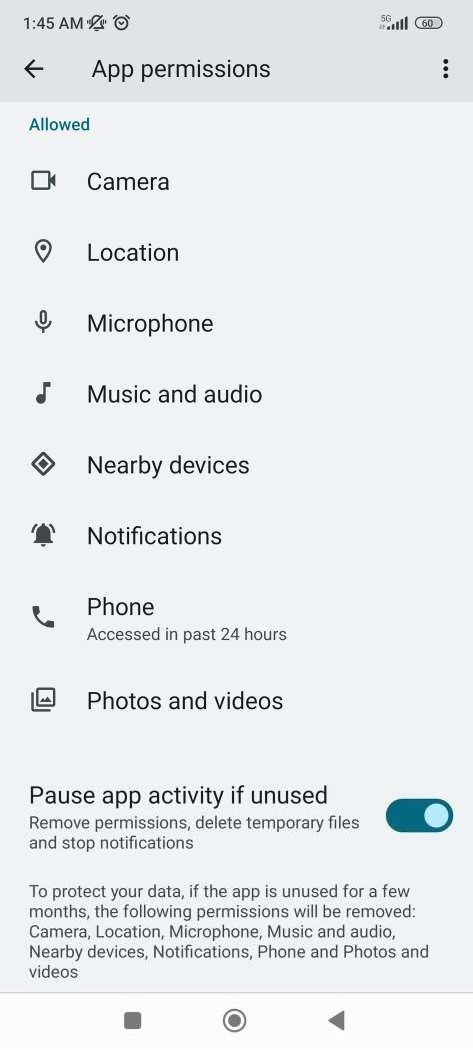
Pro Tip: On Android 12 or newer, Bluetooth permissions are often listed under “Nearby Devices.” Make sure this specific permission is granted to allow the TytoCare app to find your stethoscope or pulse oximeter.