Troubleshooting: App Login Failure & Connectivity Alerts
Follow these steps if a patient cannot log in despite using valid credentials, specifically when accompanied by a network-related error message.
Symptom
- The patient fails to log into the TytoCare app with a correct username and password.
- The app displays an error message stating: “No Internet Connection” or “Wi-Fi connectivity issue.”
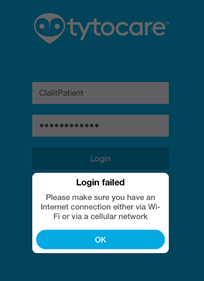
Possible Cause
The mobile device running the TytoCare app is offline. The app requires an active internet handshake to verify credentials against the TytoCare cloud. This occurs if:
- Wi-Fi is disabled or the signal is too weak.
- Cellular data is turned off or out of range.
- The device is in Airplane Mode.
Suggested Solution
- Verify Connectivity: Open a web browser on the mobile device and try to load a public website (e.g., google.com) to confirm internet access.
- Toggle Wi-Fi: Go to the device settings, turn Wi-Fi off and back on, and ensure you are connected to a stable network.
- Disable Airplane Mode: Ensure the device is not restricted from transmitting data.
- Retry Login: Once the connection is confirmed, return to the TytoCare app and log in again.