Pairing the Omron Evolv Blood Pressure Monitor
If your TytoHome or TytoPro kit included an Omron Evolv Blood Pressure Monitor, follow these steps to pair it with the TytoCare App via Bluetooth.
Initial Setup
- Enable Bluetooth: Ensure Bluetooth is turned ON on your smartphone or tablet.
- Login: Open the TytoCare App and sign in to your account.
- Navigate to Pairing: Tap the Menu (three lines) and select Pair External Devices. Choose BP Monitor.
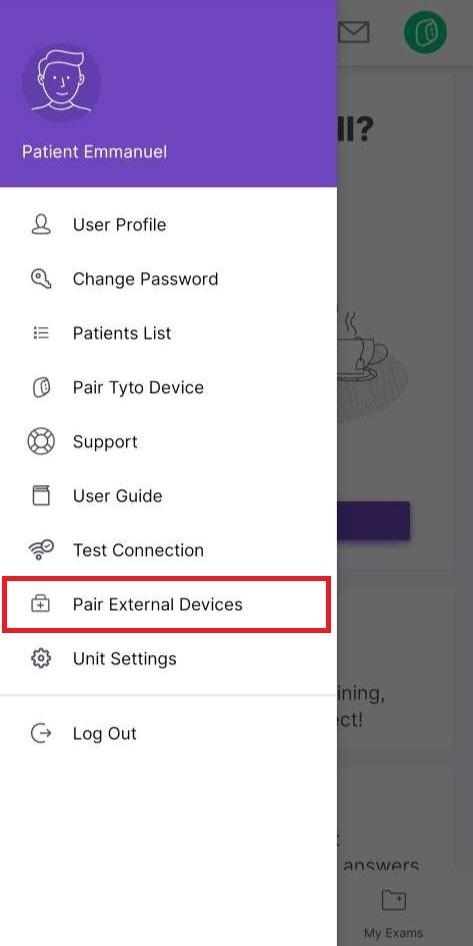
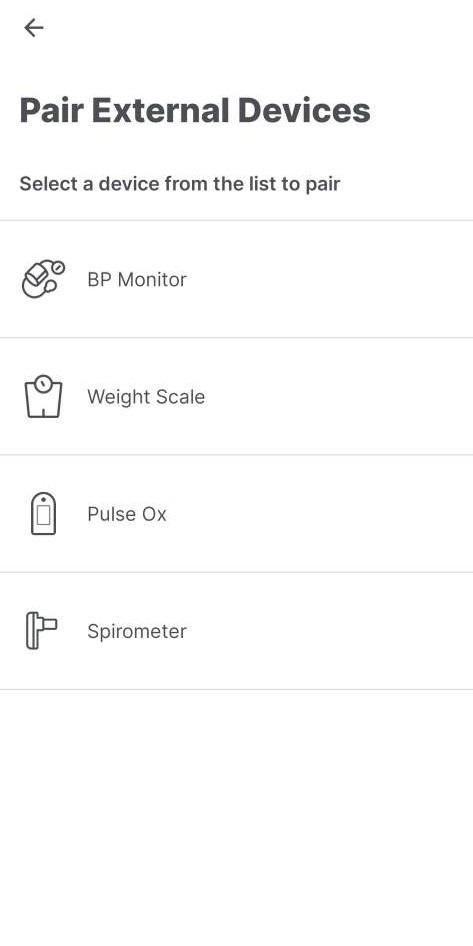
*Note: The available devices list may vary based on your organization’s configuration.
Pairing the Monitor
- Power Check: Ensure batteries are correctly inserted into the Omron Evolv unit.
- Registration Mode: Press and hold the Registration button (indicated by two zigzag lines) on the front of the monitor until a “P” appears on the display.
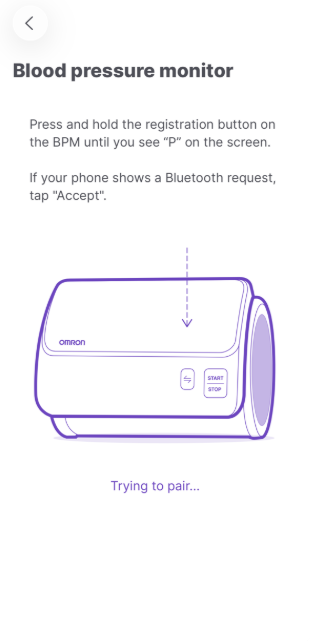
- Confirm Connection: The App will display a “Pairing Successful” notification.
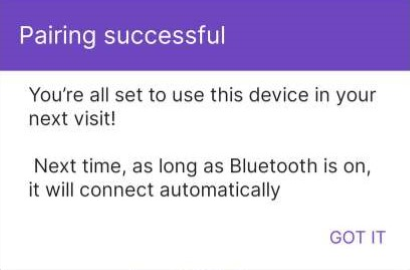
Success: Your monitor is now paired. The App will automatically connect whenever the monitor is in range.