How to View Shared Exams
This article provides the steps for a family member or provider to view a shared exam. For the best experience, please use a computer (PC/MAC) and ensure the Google Chrome browser is installed.
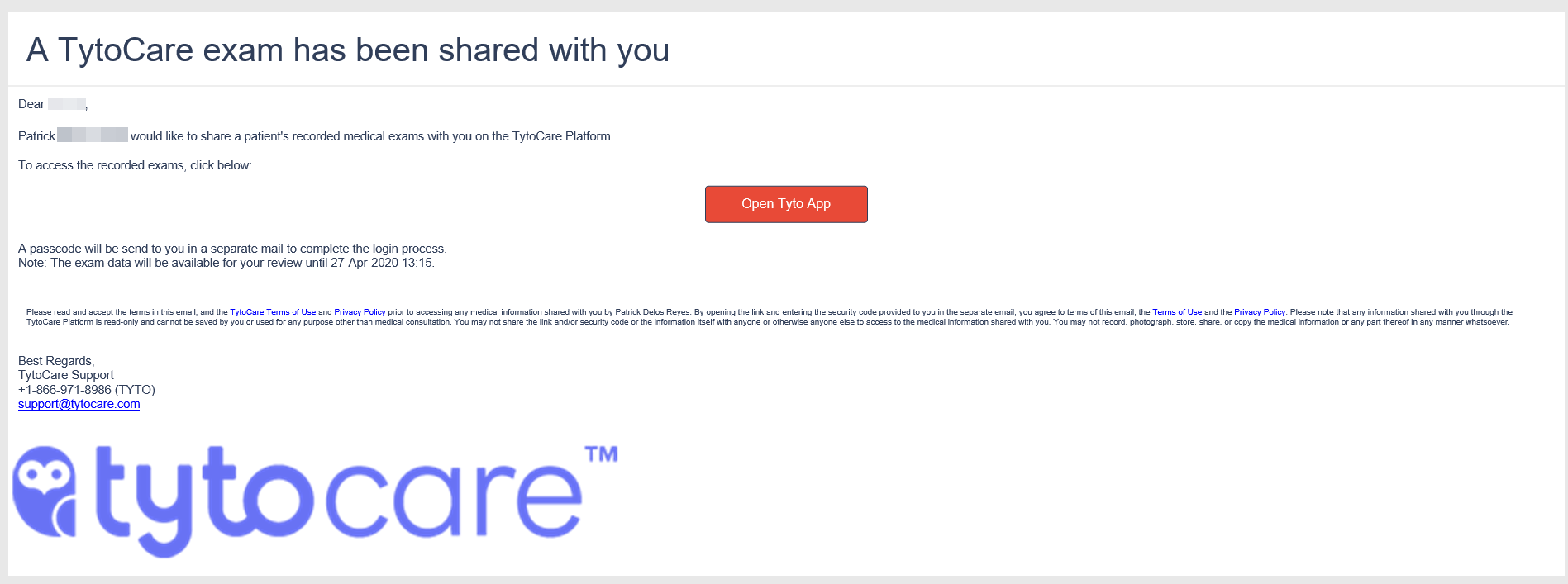
Step 1: Open the Shared Link
Open the notification email on your computer and click the “Open Tyto App” button.
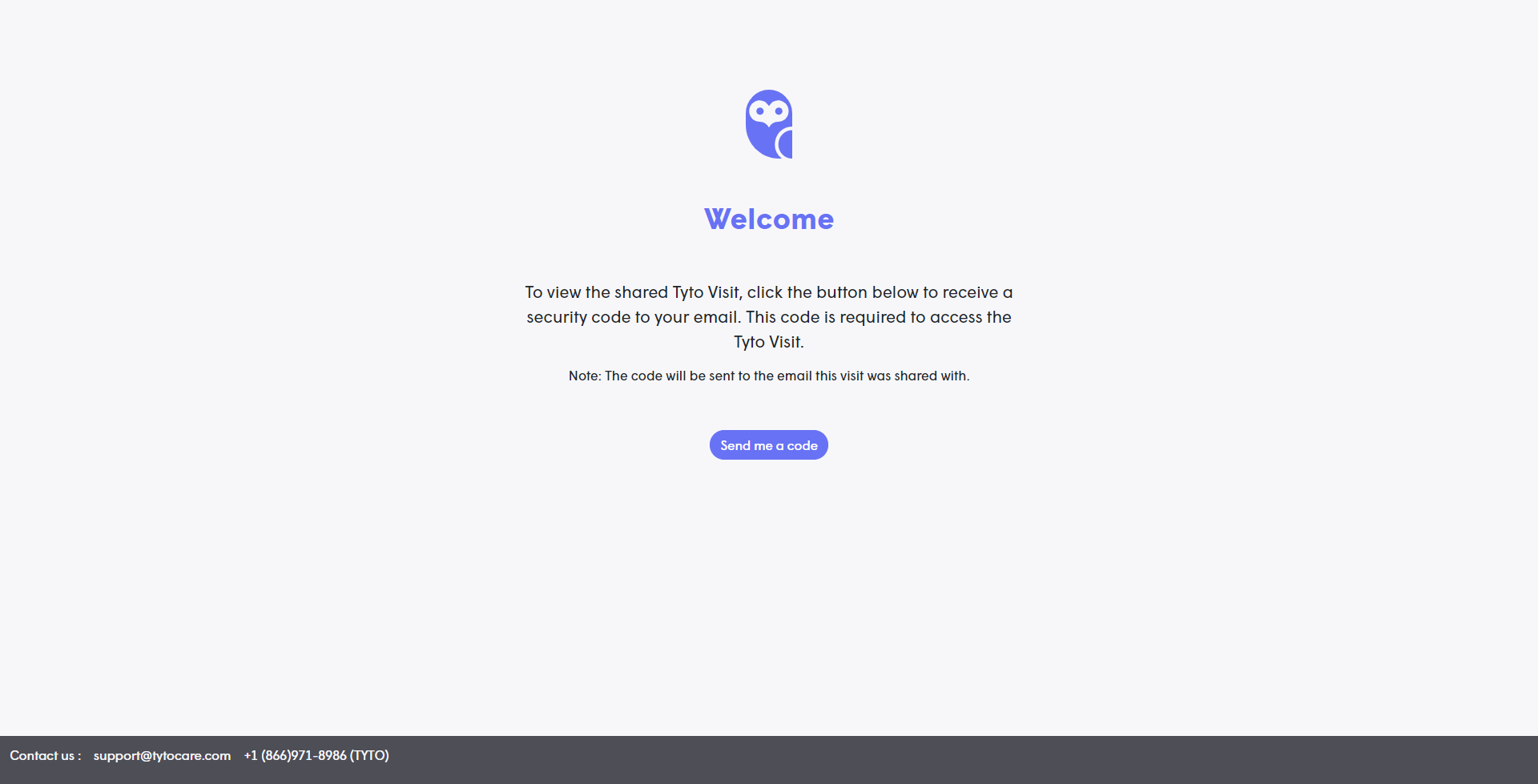
Step 2: Request Security Code
On the login screen, click the “Send me a code” button.
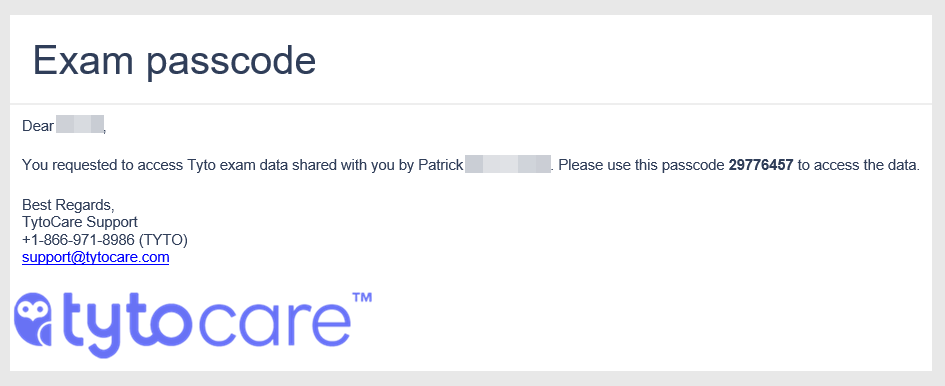
Step 3: Retrieve Passcode
Check your email inbox for a new message containing your temporary passcode and copy it.
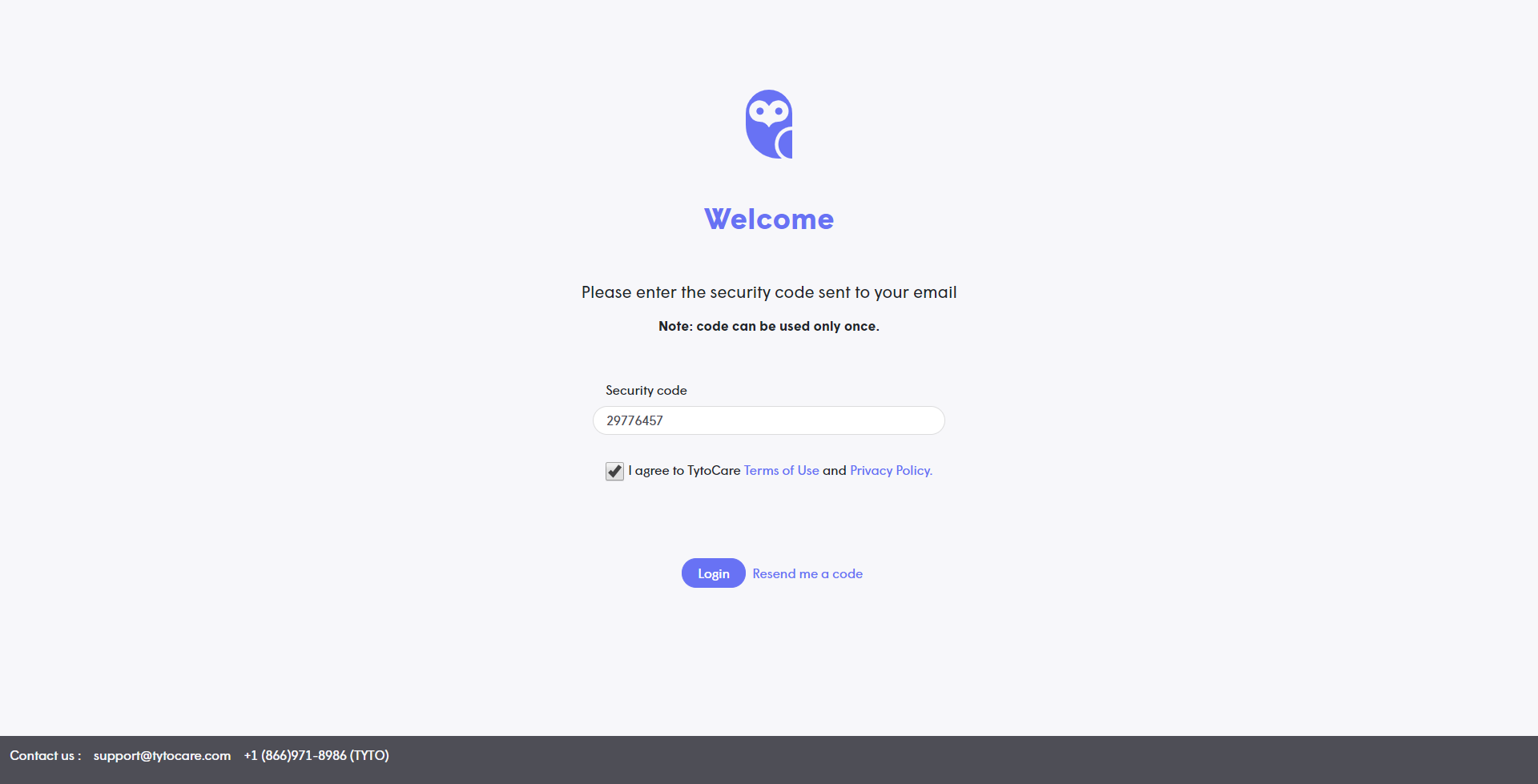
Step 4: Log In
Paste the passcode into the Security Code box. Check the “I agree” box and click Login.
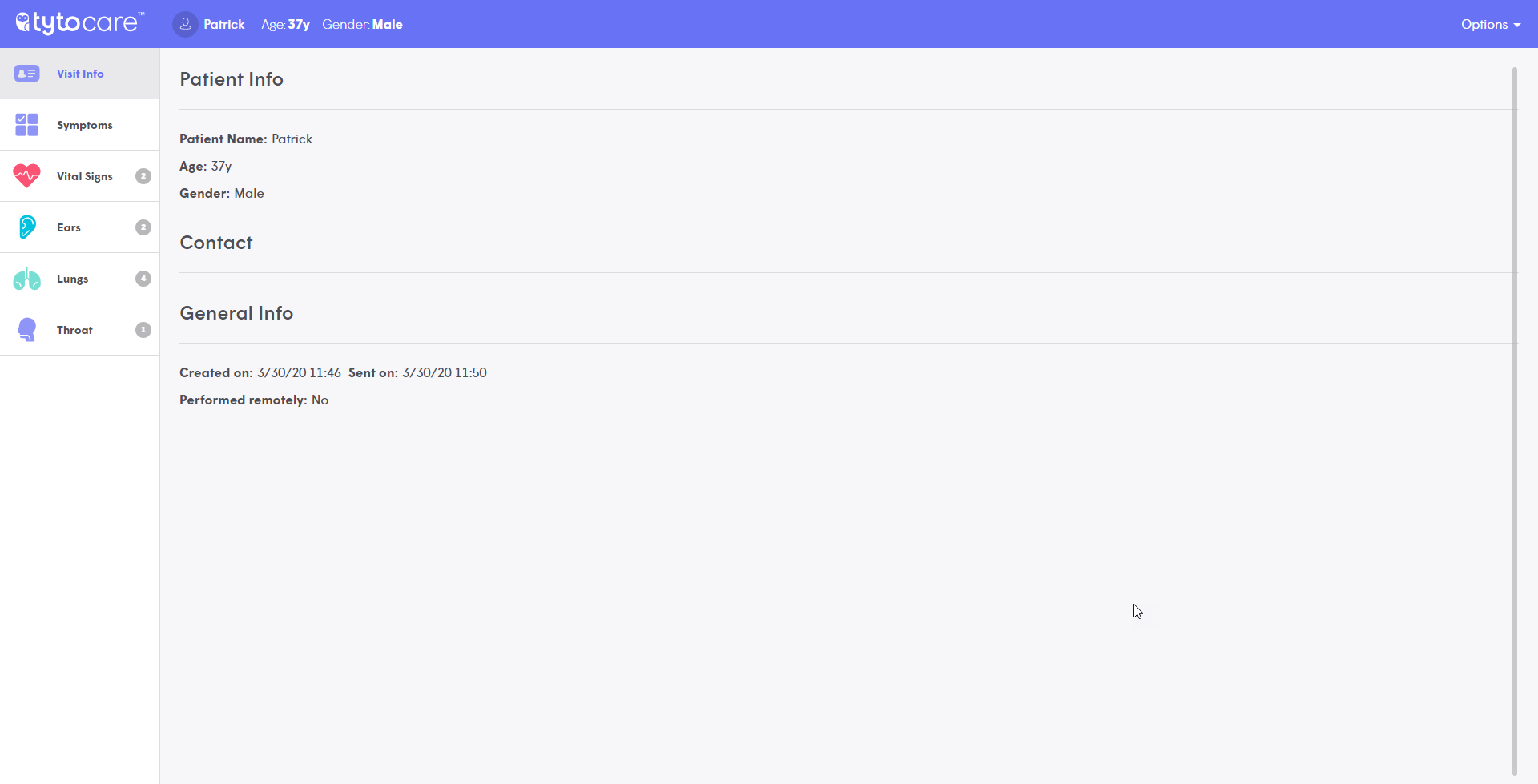
Step 5: Review Exams
You can now view and review all exams currently available to you.
Need Assistance?
If you have any questions, please contact TytoCare Support:
- Email: support@tytocare.com
- Phone: 1-866-971-8986 (Select Option 2 for support)